




Biometric Authentication Login/Order Placement FAQ
Setting Up the Biometric Authentication
-
01. How do I set up Face/Touch ID for login to LIMTAN iPhone App?
 Please set up your Face/Touch ID on your iPhone settings before you proceed with the steps below.
Do note that Face ID is available on iPhone X and later and running on iOS 11 and above. Touch ID is available on iPhone 5s or later and running on iOS 11 and above.Steps for Set up:
1) Launch LIMTAN App.
2) To register for Face/Touch ID, select the icon beside the "Log in" button.
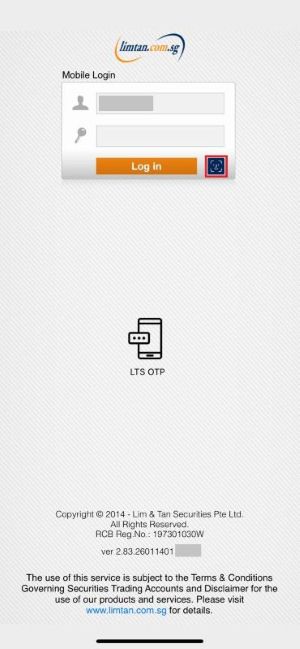
3) To configure Face/Touch ID, please login using your Login ID and Password to start.
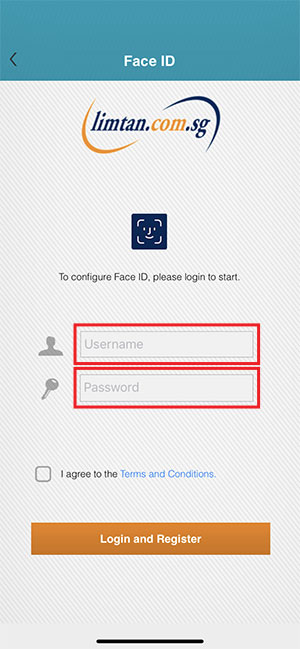
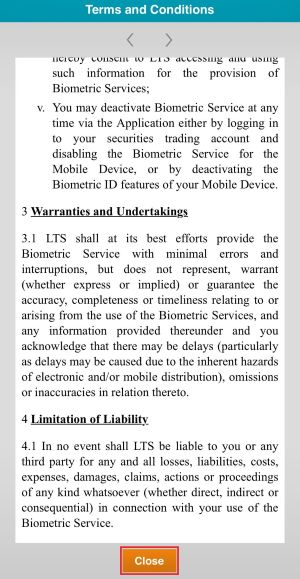
4) Before you proceed, tap on Terms and Conditions. Read the Lim & Tan Securities Biometric Authentication Service Terms and Conditions and select "Close". Check the box next to "I agree to the Terms and Conditions." and select "Login and Register" to continue. You will be logged in after verification via Face/Touch ID.
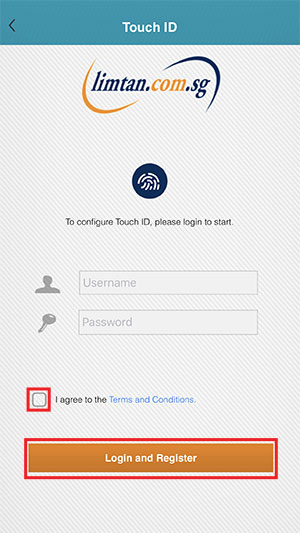
5) To confirm your Face/Touch ID is enabled, select "Settings" from the Menu bar , the Face/Touch ID will be checked "Enabled".
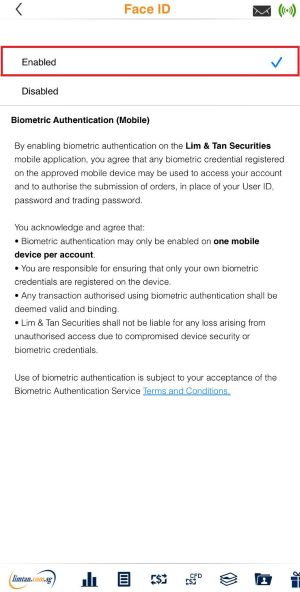
Alternatively, you may follow the steps below:
1) Launch and login to LIMTAN App using your Login ID and Password.
2) Go to Menu bar, select "Settings".
3) Choose "Face/Touch ID".
4) Select "Enabled". To enable Face/Touch ID for Lim & Tan Securities login, you will need to read and accept the Biometric Authentication Service Terms and Conditions. Tap on "Accept" then "Enable" to continue.
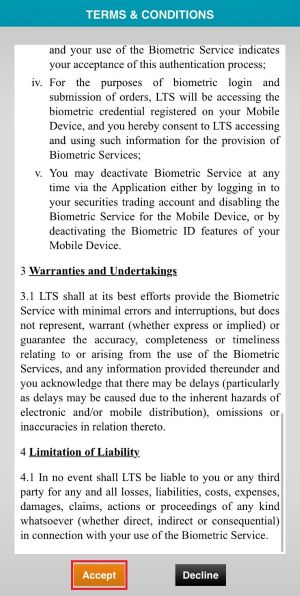
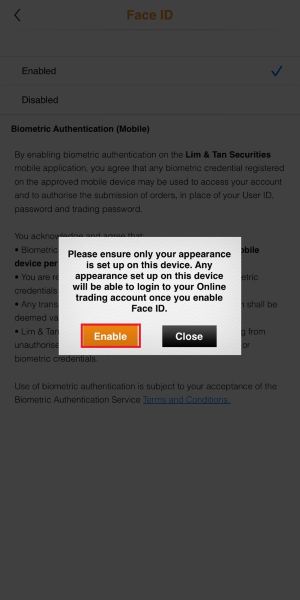
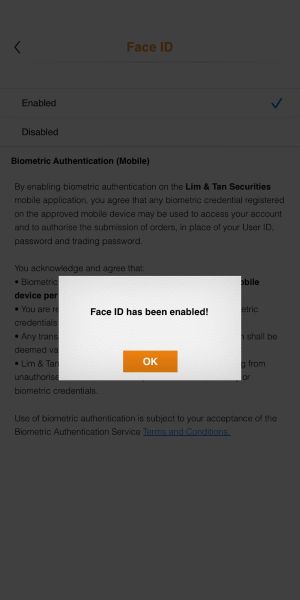
5) A confirmation message will pop up when the Face/Touch ID has been enabled. Select "OK".
-
02. How do I set up Face/Touch ID for order placement in LIMTAN iPhone App?
Please set up your Face/Touch ID on your iPhone settings before you proceed with the steps below.
Do note that Face ID is available on iPhone X and later and running on iOS 11 and above. Touch ID is available on iPhone 5s or later and running on iOS 11 and above.(A) To set up where Login is using Login ID/Password (Non Biometric)
Note: Once Biometric is set up for Order Placement, Biometric login will also be enabled. Client can still choose to login via Non Biometric.
1) Launch and login to LIMTAN App using your Login ID and Password.
2) Go to Menu bar, select "Settings".
3) Select "Face/Touch ID".
4) Select "Enabled". To enable Face/Touch ID for Lim & Tan Securities login and order placement, you will need to read and accept the Biometric Authentication Service Terms and Conditions. Tap on "Accept" then "Enable" to continue.
5) A confirmation message will pop up when the Face/Touch ID has been enabled. Select "OK".
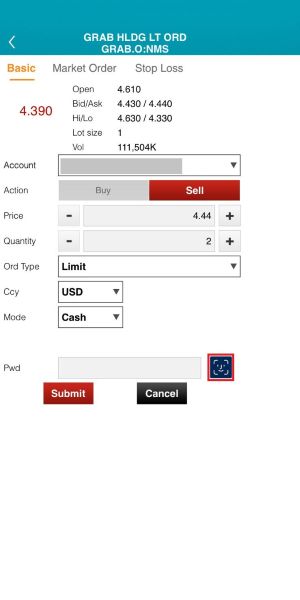
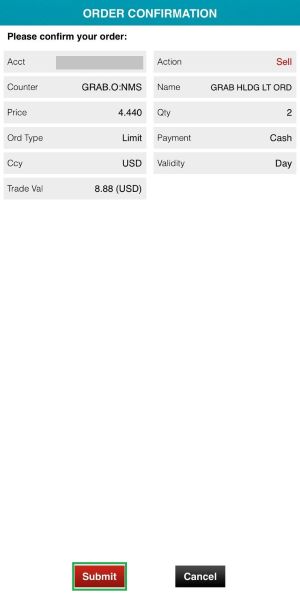
6) To place an order, choose a counter and tap on "Buy/Sell". Select the Face/Touch ID icon for Biometric order placement. You may then tap on the "Submit" button.
(B) To set up where Login is already using Biometric
1) Launch and login to LIMTAN App via your Face/Touch ID.
2) To place an order, choose a counter and tap on "Buy/Sell". Select the Face/Touch ID icon for Biometric order placement. You may then tap on the "Submit" button.
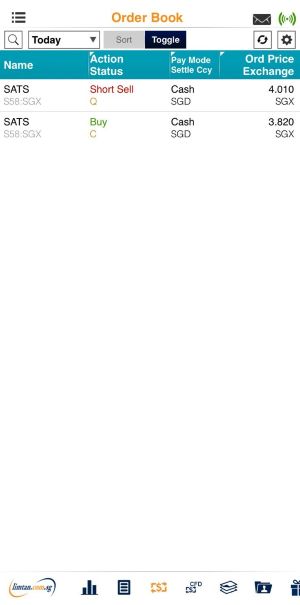
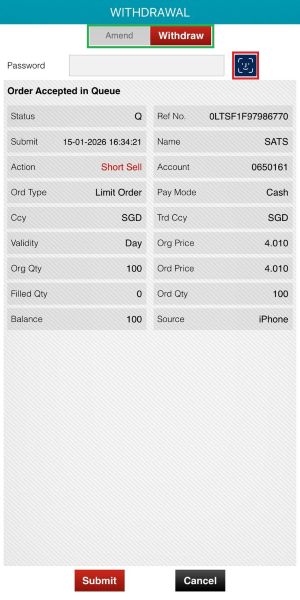
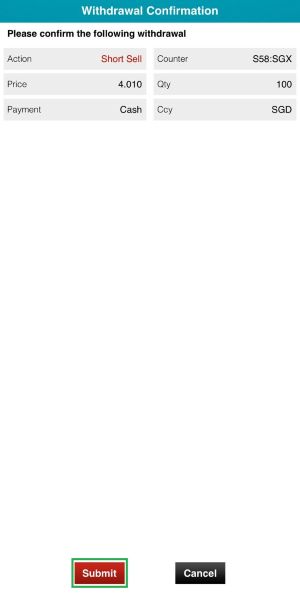
3) For order amendment/withdrawal, go to "Order Book" under "Trades" via the Menu bar and tap on the order. Select "Amend" or "Withdraw". Tap on the Face/Touch ID icon for Biometric order amendment/withdrawal. You may then select the "Submit" button.
-
03. How do I set up Face/Touch ID for login to LIMTAN iPad App?
Please set up your Touch ID on your iPad settings before you proceed with the steps below.
Do note that Touch ID is available on iPad (5th generation and later), iPad Pro (1st and 2nd generation), iPad Air 2 and iPad mini 3 or later and running on iOS 11 and above. Face ID is available on iPad Pro 11-inch and iPad Pro 12.90-inch (3rd generation) and running on iOS 11 and above.Steps for Set up:
1) Launch LIMTAN App.
2) To register for Face/Touch ID, select the icon beside the "Log in" button.
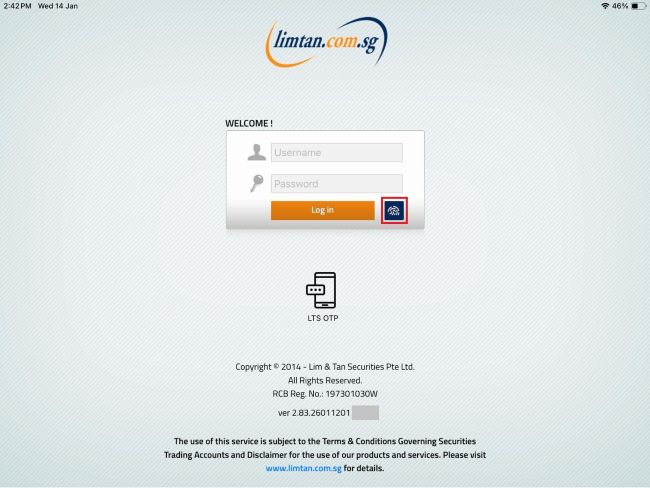
3) To configure Face/Touch ID, please login using your Login ID and Password to start.
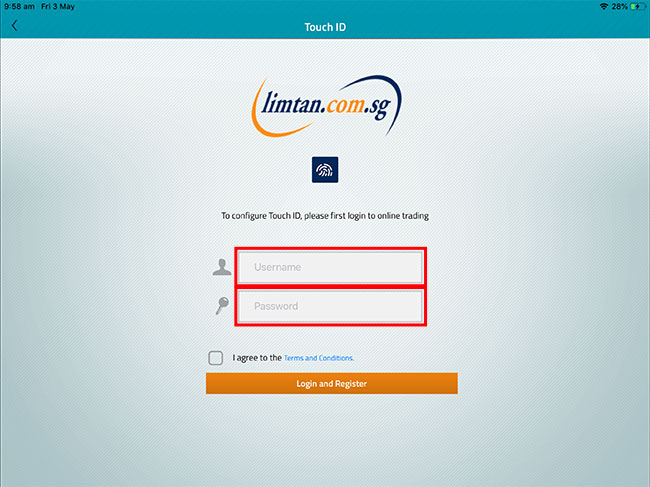
4) Before you proceed, tap on Terms and Conditions. Read the Lim & Tan Securities Biometric Authentication Service Terms and Conditions and select "Close". Check the box next to "I agree to the Terms and Conditions." and select "Login and Register" to continue. You will be logged in after verification via Face/Touch ID.
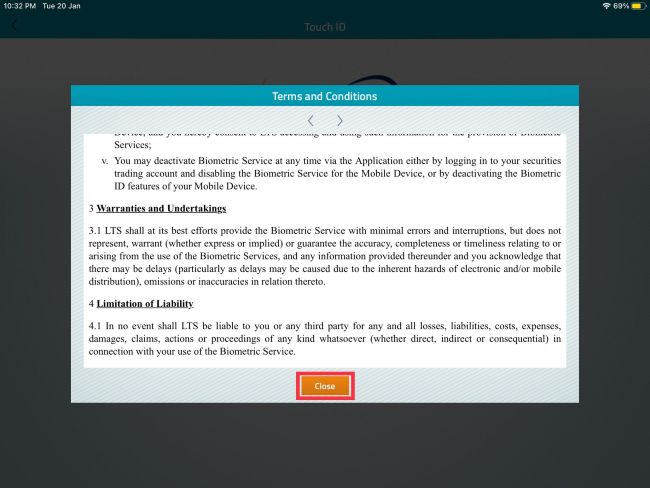
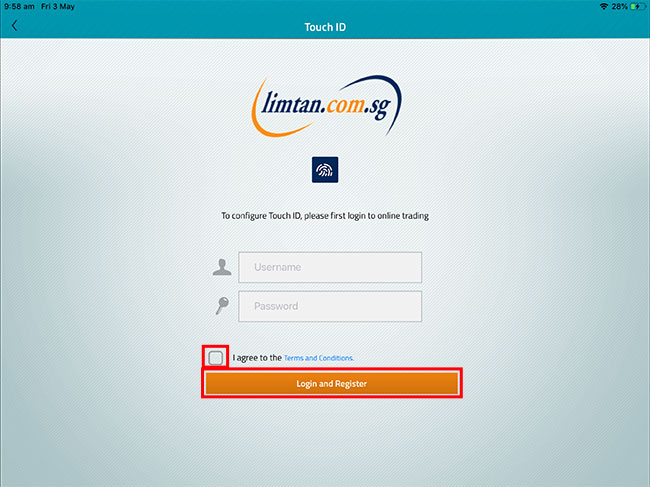
5) To confirm your Face/Touch ID is enabled, select "Settings" from the Menu bar, the Face/Touch ID will be checked "Enabled".
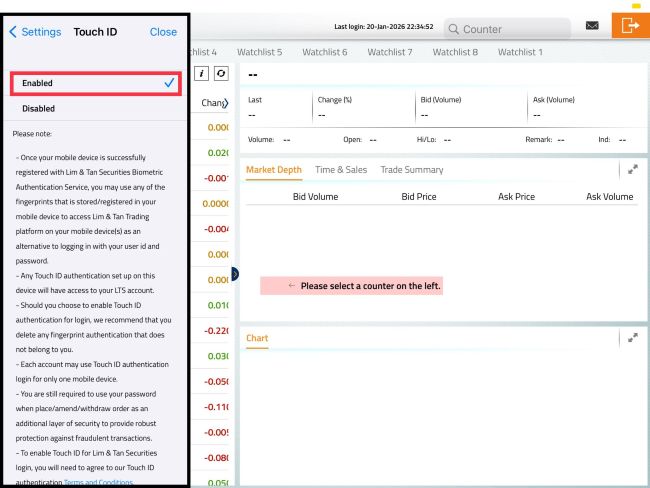
Alternatively, you may follow the steps below:
1) Launch and login to LIMTAN App using your Login ID and Password.
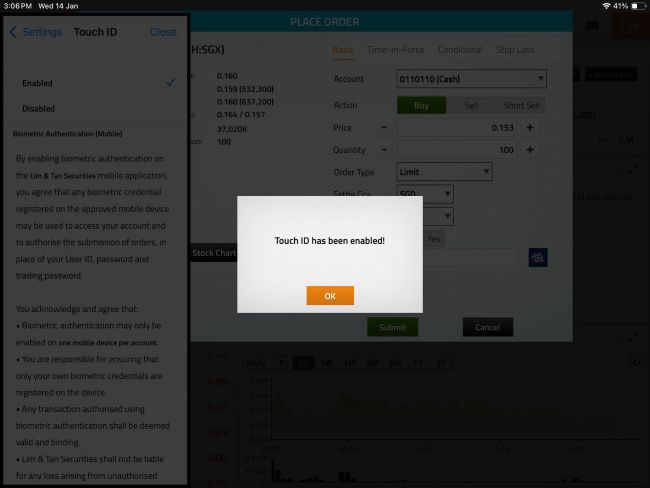
2) Go to the Menu bar and select "Settings".
3) Select "Face/Touch ID".
4) Select "Enabled". To enable Face/Touch ID for Lim & Tan Securities login, you will need to read and accept the Biometric Authentication Service Terms and Conditions. Tap on "I Accept" then "Enable" to continue.
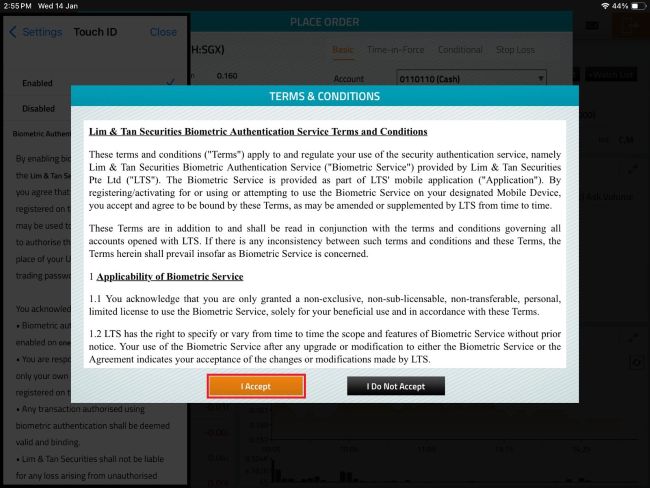
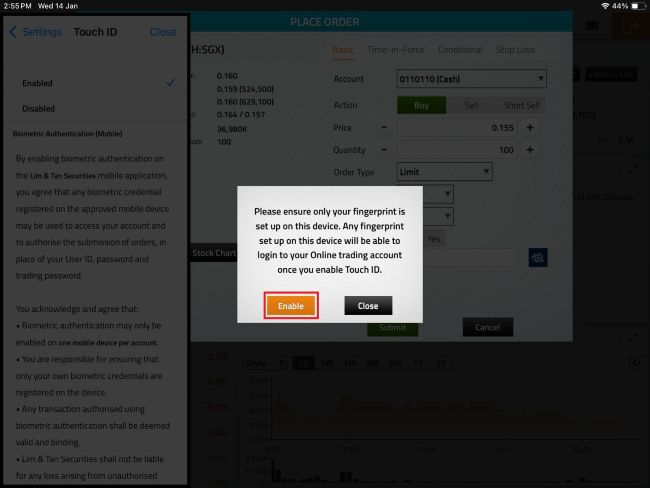
5) A confirmation message will pop up when the Face/Touch ID has been enabled. Select "OK".
-
04. How do I set up Face/Touch ID for order placement in LIMTAN iPad App?
Please set up your Touch ID on your iPad settings before you proceed with the steps below.
Do note that Touch ID is available on iPad (5th generation and later), iPad Pro (1st and 2nd generation), iPad Air 2 and iPad mini 3 or later and running on iOS 11 and above. Face ID is available on iPad Pro 11-inch and iPad Pro 12.90-inch (3rd generation) and running on iOS 11 and above.(A) To set up where Login is using Login ID/Password (Non Biometric)
Note: Once Biometric is set up for Order Placement, Biometric login will also be enabled. Client can still choose to login via Non Biometric.
1) Launch and login to LIMTAN App using your Login ID and Password.
2) Go to the Menu bar and select "Settings".
3) Select "Face/Touch ID".
4) Select "Enabled". To enable Face/Touch ID for Lim & Tan Securities login and order placement, you will need to read and accept the Biometric Authentication Service Terms and Conditions. Tap on "I Accept" then "Enable" to continue.
5) A confirmation message will pop up when the Face/Touch ID has been enabled. Select "OK".
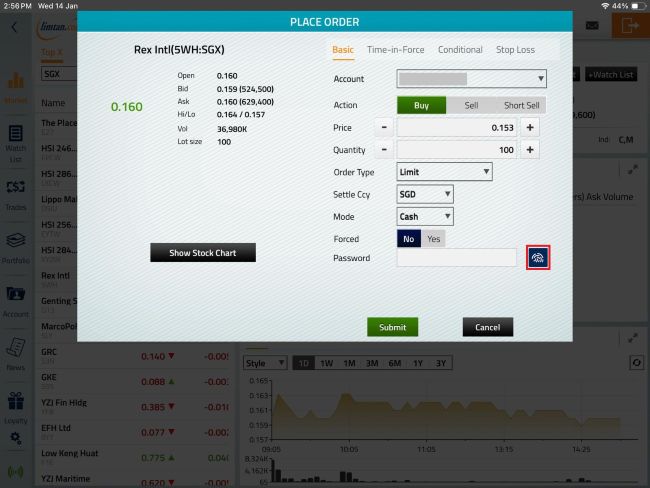
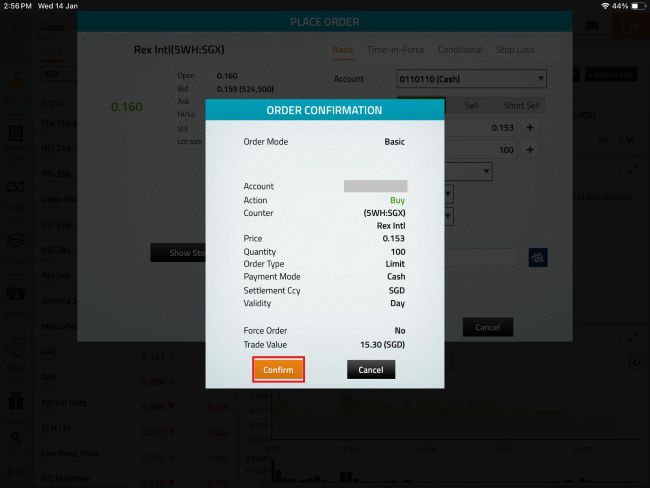
6) To place an order, select a counter and tap on "Buy/Sell". Select the Face/Touch ID icon for Biometric order placement. You may then tap on the "Confirm" button.
(B) To set up where Login is already using Biometric
1) Launch and login to LIMTAN App via your Face/Touch ID.
2) To place an order, select a counter and tap on "Buy/Sell". Select the Face/Touch ID icon for Biometric order placement. You may then tap on the "Confirm" button.
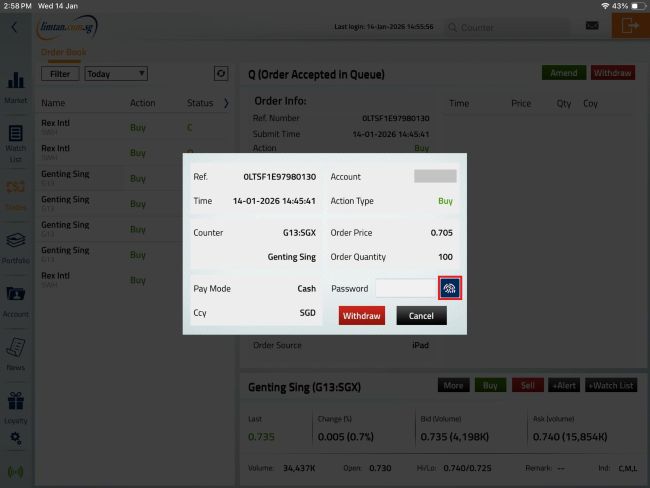
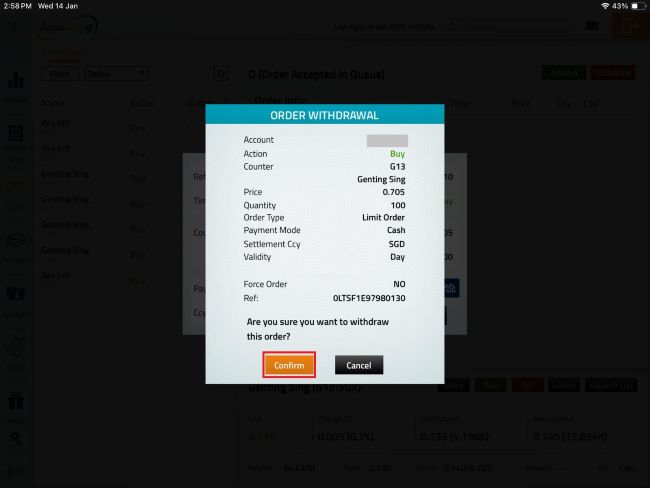
3) For order amendment/withdrawal, go to "Order Book" under "Trades" via the Menu bar and tap on the order. Select "Amend" or "Withdraw". Tap on the Face/Touch ID icon for Biometric order amendment/withdrawal. You may then select the "Confirm" button.
-
05. How do I set up Fingerprint for login to LIMTAN Android App?
Please set up your Fingerprint on your Android settings before you proceed with the steps below.
Do note that Fingerprint is available on phone models running on Android OS 9 and above.Steps for Set up:
1) Launch LIMTAN App.
2) To register for Fingerprint, select the icon beside the "Login" button.
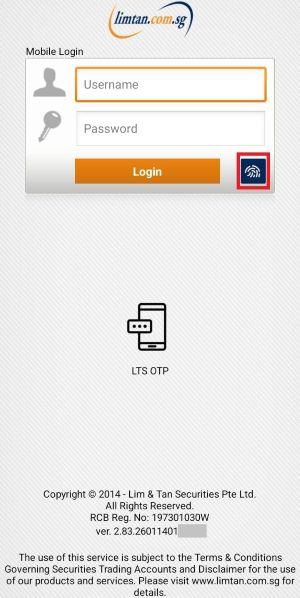
3) To configure Fingerprint, please login using your Login ID and Password to start.
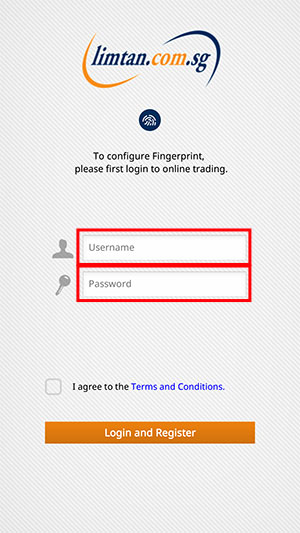
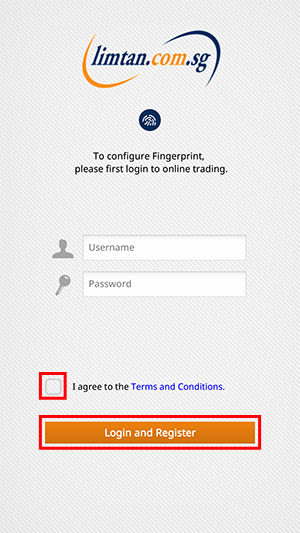
4) Before you proceed, tap on Terms and Conditions. Read the Lim & Tan Securities Biometric Authentication Service Terms and Conditions and select "Close". Check the box next to "I agree to the Terms and Conditions." and select "Login and Register" to continue.
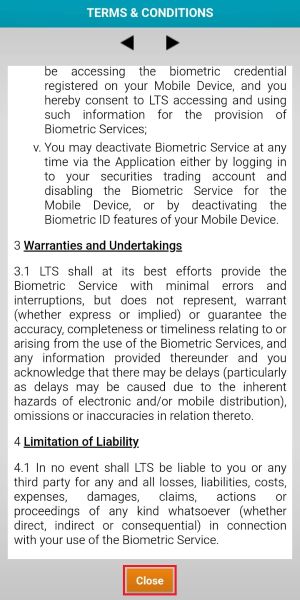
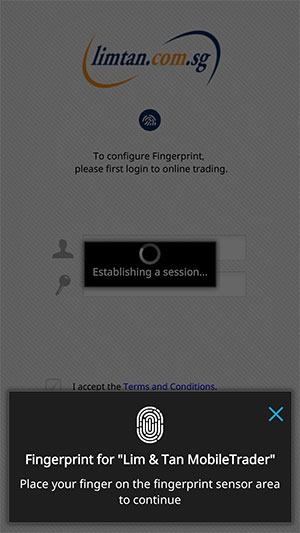
5) Place your finger on the fingerprint sensor area to proceed.
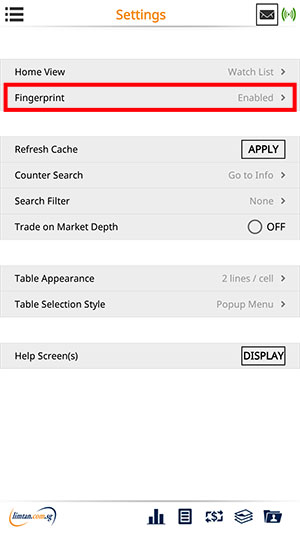
6) To confirm your Fingerprint is enabled, select "Settings" from the Menu bar, the Fingerprint will be checked enabled.
Alternatively, you may follow the steps below:
1) Launch and login to LIMTAN App using your Login ID and Password.
2) Go to Menu bar, select "Settings".
3) Select "Fingerprint".
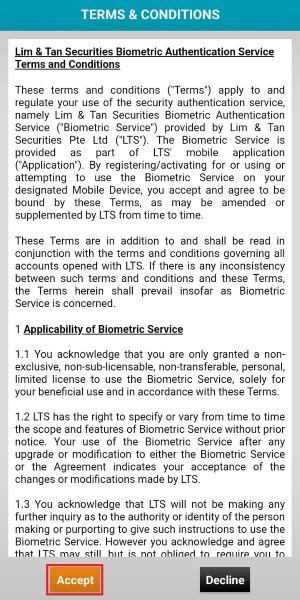
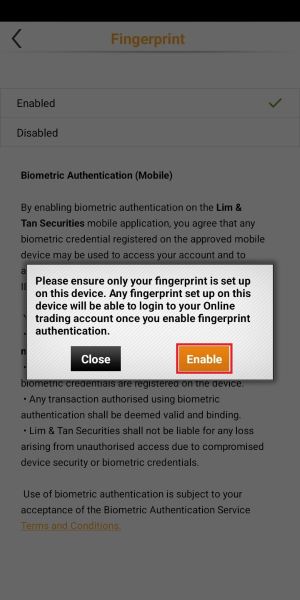
4) Select "Enabled". To enable Fingerprint for Lim & Tan Securities login, you will need to read and accept the Fingerprint authentication Terms and Conditions. Tap on "Accept" then "Enable" to continue.
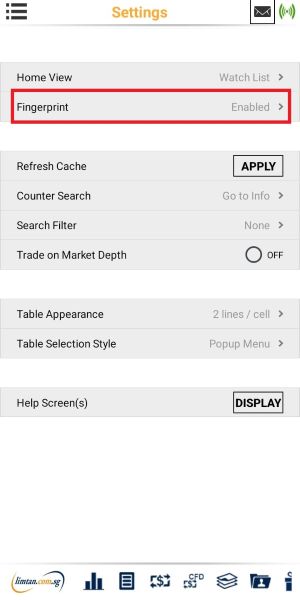
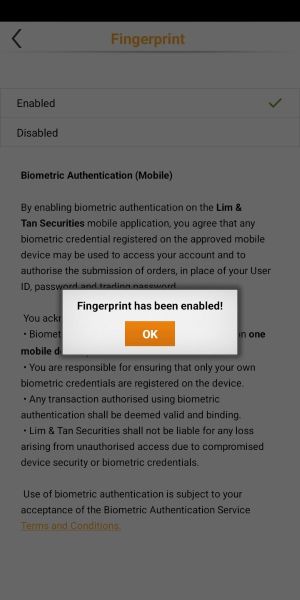
5) A confirmation message will pop up when the Fingerprint has been enabled. Select "OK".
-
06. How do I set up Fingerprint for order placement in LIMTAN Android App?
Please set up your Fingerprint on your Android settings before you proceed with the steps below.
Do note that Fingerprint is available on phone models running on Android OS 9 and above.(A) To set up where Login is using Login ID/Password (Non Biometric)
Note: Once Biometric is set up for Order Placement, Biometric login will also be enabled. Client can still choose to login via Non Biometric.
1) Launch and login to LIMTAN App using your Login ID and Password.
2) Go to Menu bar, select "Settings".
3) Select "Fingerprint".
4) Select "Enabled". To enable Fingerprint for Lim & Tan Securities login and order placement, you will need to read and accept the Fingerprint Authentication Service Terms and Conditions. Tap on "Accept" then "Enable" to continue.
5) A confirmation message will pop up when the Fingerprint has been enabled. Select "OK".
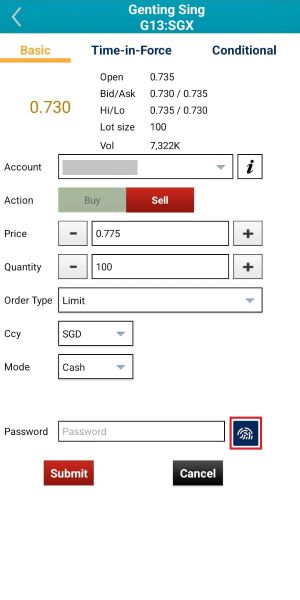
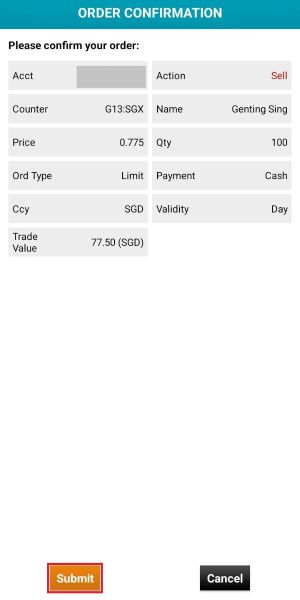
6) To place an order, select a counter and tap on "Buy/Sell". Select the Fingerprint icon for Biometric order placement. You may then tap on the "Submit" button.
(B) To set up where Login is already using Biometric
1) Launch and login to LIMTAN App via your Fingerprint.
2) To place an order, select a counter and tap on "Buy/Sell". Select the Fingerprint icon for Biometric order placement. You may then tap on the "Submit" button.
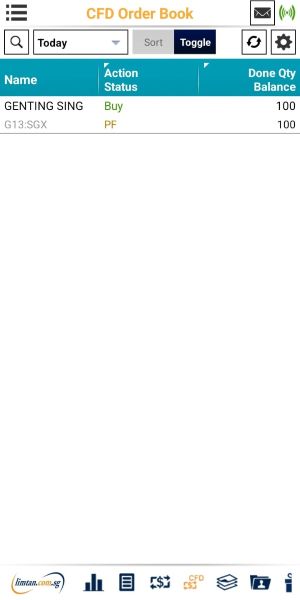
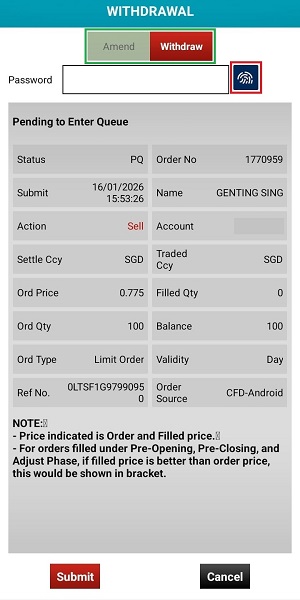
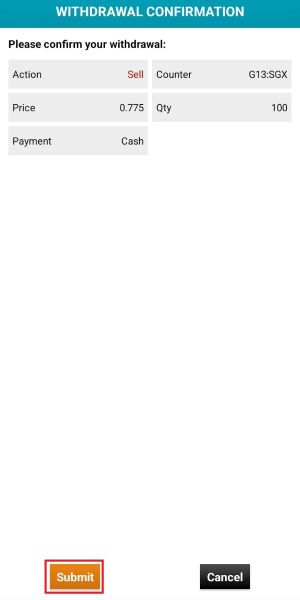
3) For order amendment/withdrawal, go to "Order Book" under "Trades" via the Menu bar and tap on the order. Select "Amend" or "Withdraw". Tap on the Fingerprint icon for Biometric order amendment/withdrawal. You may then select the "Submit" button.
-
07. Can I set up Biometric Authentication for more than one Login ID in One Device?
No, the Biometric Authentication can be set up/enabled on only one mobile device per Login ID. If you have registered biometric in the device, please disable it after login and reinstall the LTS app for the next user to register biometric via the same device. You may refer to the updated Biometric Authentication Service Terms and Conditions here.
Security Responsibility: Clients are recommended to only have their own biometrics stored in their mobile device. Any face or fingerprint stored on the device can be used to access the LTS mobile app and trade if biometric is enabled for the respective functions.
Disabling the Biometric Authentication
-
01. How do I disable Face/Touch ID for login/order placement in LIMTAN iPhone App?
Steps:
1) Go to Menu bar, select "Settings".
2) Select "Face/Touch ID".
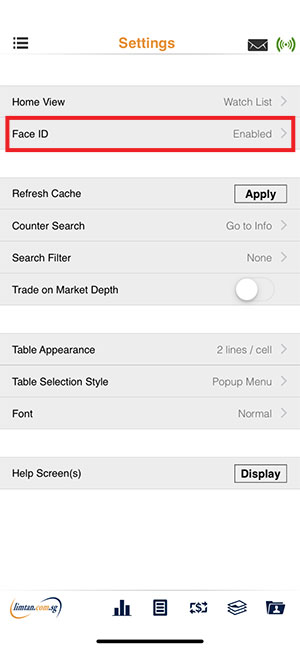
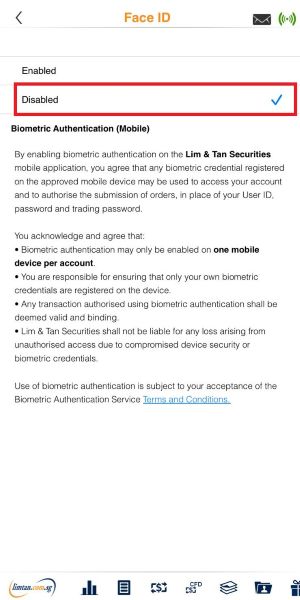
3) Select "Disabled".
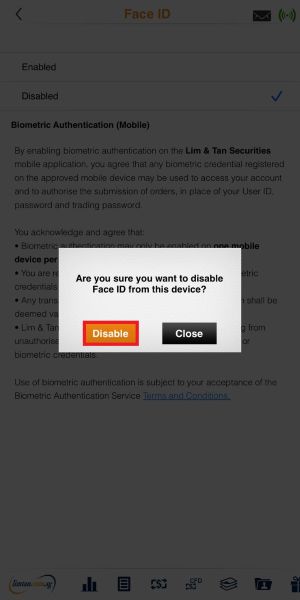
4) Select "Disable" to confirm.
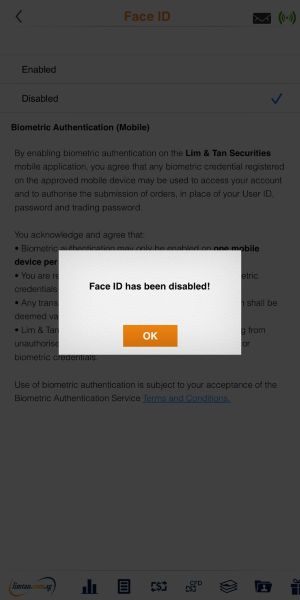
Please note that when the biometric authentication has been disabled in the app settings, both login and order placement biometrics will be disabled.When you re-enabled the biometric authentication, you will need to acknowledge the T&Cs again. Both login and order placement biometrics will be enabled even if you had only enabled biometric authentication for order placement previously.
-
02. How do I disable Face/Touch ID for login/order placement in LIMTAN iPad App?
Steps:
1) Go to Menu bar and select "Settings".
2) Select "Face/Touch ID".
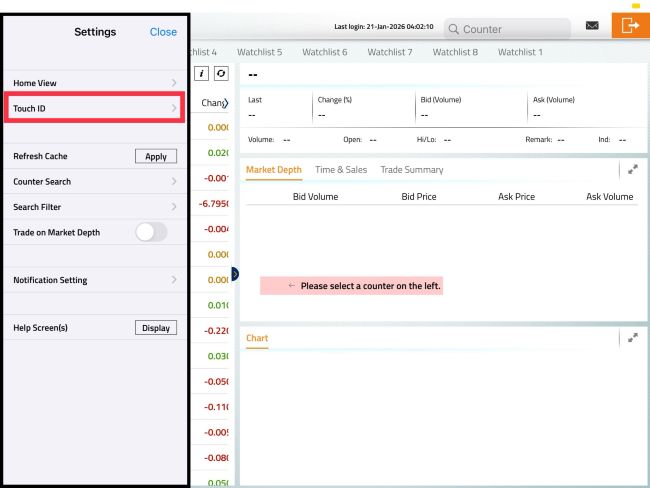
3) Select "Disabled".
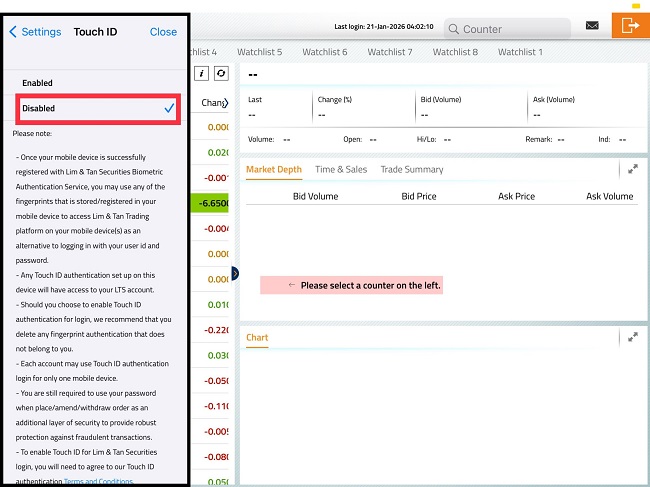
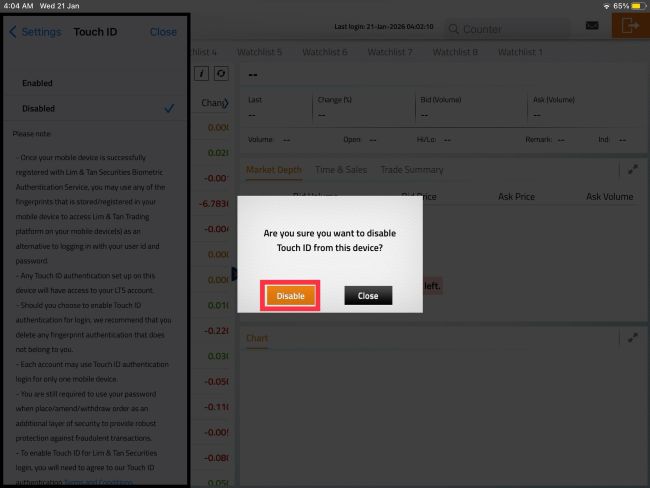
4) Select "Disable" to confirm.
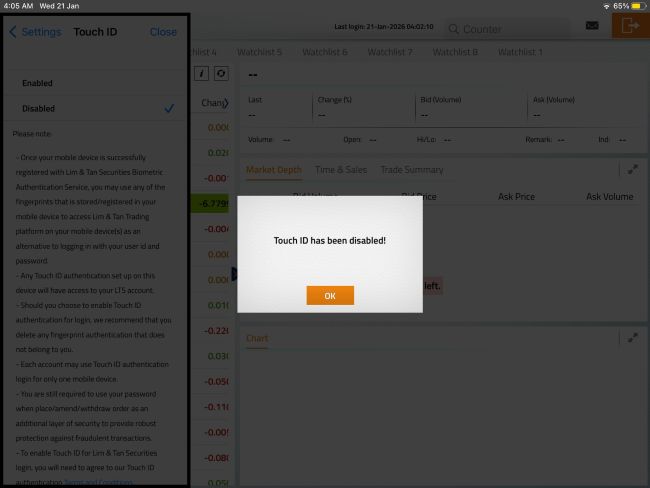
Please note that when the biometric authentication has been disabled in the app settings, both login and order placement biometrics will be disabled.When you re-enabled the biometric authentication, you will need to acknowledge the T&Cs again. Both login and order placement biometrics will be enabled even if you had only enabled biometric authentication for order placement previously.
-
03. How do I disable Fingerprint for login/order placement in LIMTAN Android App?
Steps:
1) Go to Menu bar, select "Settings".
2) Select "Fingerprint".
3) Select "Disabled".
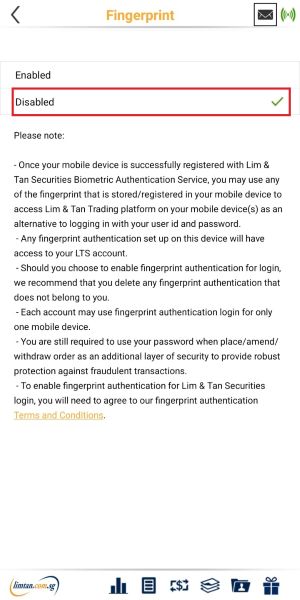
4) Select "Disable" to confirm.
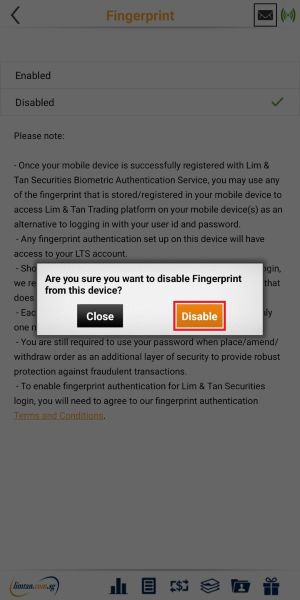
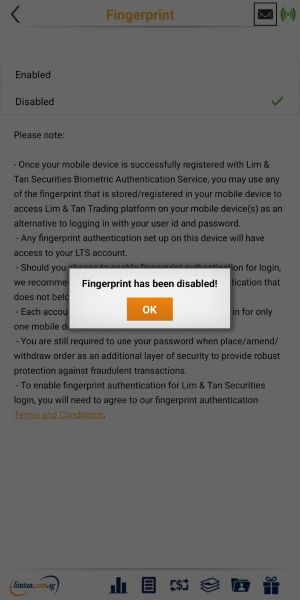
Please note that when the biometric authentication has been disabled in the app settings, both login and order placement biometrics will be disabled.When you re-enabled the biometric authentication, you will need to acknowledge the T&Cs again. Both login and order placement biometrics will be enabled even if you had only enabled biometric authentication for order placement previously.
Please note that the above screenshots may differ for different phone models.

This advertisement has not been reviewed by the Monetary Authority of Singapore.